
Photo by Bonus Action
For much of my digital art journey, I’ve been trying to find a tablet that offers the same joy and freedom as a sheet of paper and a pencil. I crave that organic, tangible feeling of pencil pulling along the tooth of good sketch pads. I thought finding a similar joy in a graphics tablet was impossible – Until I sat down at the XPPen Artist Pro 19 (Gen 2).
I will admit, when I reviewed the Magic Drawing Pad over the summer, I was stunned at its quality. For a little drawing tablet, it offered a shockingly pleasant drawing experience. But without access to desktop drawing software, it wasn’t able to quite hit the same power as a monitor paired with a computer.
The Artist Pro 19 takes everything wonderful about the Magic Drawing Pad, makes it better, and adds so much to it that I can’t believe it is under a thousand dollars. It does everything you could want, with colors that are crystal clear, and a paper-like surface that is so wonderful to draw on that I completely lose track of time.
Key Details
- Designer: XPPen
- Operating System: PC/Apple
- Pen Pressure: 16k
- Screen Resolution: 4k
- Size: 19″
- Where to Buy: XPPen Website
- Price: $899.99
- Sample Provided for Review: Yes
Two Stylus Options Rocking X3 Pro Smart Chips

The first thing to mention when talking about the Artist Pro 19 (Gen 2) are the two Stylus options that come included in the price of the tablet.
The X3 Pro Roller Stylus and Pro Slim Stylus both offer sleek designs. The Slim is perfect for quick sketching with two programable buttons, while the Pro Roller has a classic drawing tablet stylus shape and a roller that can be programmed via the XPPen software center to zoom in and out of the canvas.
I thought I was going to be absolutely crazy for the Slim, but that Roller ended up becoming critical in my process as I settled into this tablet. I use it to toggle the size of my brush. As a painter, I often brush sizes, and this eliminates the hassle of opening the size menu.
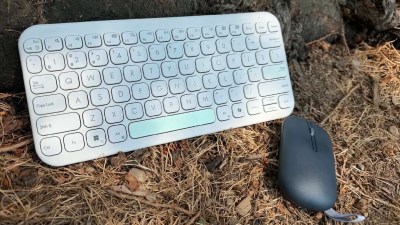
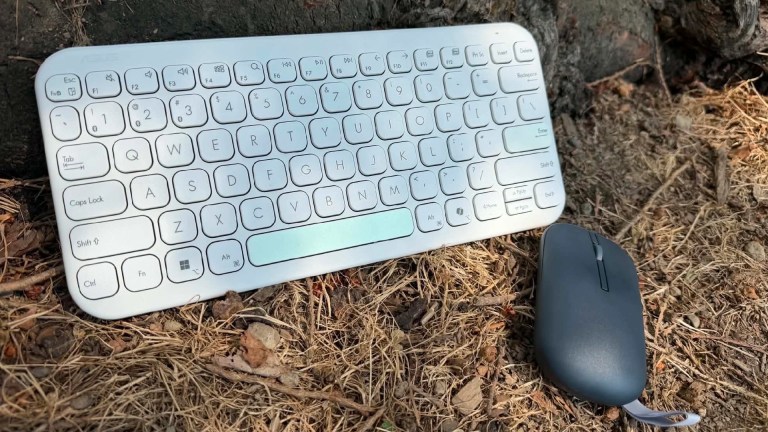
Additionally, thanks to the ACK05 Bluetooth Keyboard included with the Artist Pro 19, I am able to add the zoom to the scroller bar on the keyboard, freeing up my roller for fussing with my brushes.
The keyboard and stylus options do something Wacom’s many buttons and hot keys have never managed to achieve for me: It puts the power of intuitive drawing in my hand. Having the color dropper, brush size changer, and undo right on the body of my pen made it so I didn’t even feel like I was working on a tablet screen. I felt as powerful with that stylus as I do with my pencil and sketchbook. It is glorious.
Breathing-Taking Resolution Transforms Color

The Calman verified display of the XPPen Artist Pro 19 (Gen 2) is shocking. The 4k resolution makes every project you work on crisp and clean, with color tones and saturations I have only ever seen when working with my watercolor paints. As I push the pigments around on my canvas, nothing is lost or miscolored due to backlight glare.
This is the most authentic panting experience I have ever had on a tablet. I also appreciate that the screen doesn’t hurt my eyes, even when I’ve been working for hours on a piece.
I purposefully worked on anything that had bright magentas and cyans, savoring the way the color came through as I added shading and laid the palettes down. I have always hated coloring on tablets, and this was the first time I got the same absolute joy I normally get when working with Copic while coloring digitally. I wanted to push every color, see how it responded, and bask in the clear, accurate look of each piece.
What I will say, is that the Artist Pro 19’s stunning resolution and color accuracy are not matched by my PC monitors. I was sad to see that when moving the piece over to my main screens for publishing and sharing, it lost some vibrancy. This is something to consider for those who do prints. Make sure you test your colors on print copies, to ensure you don’t need to change the color spaces for a more accurate final product.
Etched Glass Makes For Perfect Drawing Sensations
Okay, here is my controversial hottake. I absolutely detest drawing on glass screens. The iPad’s super slick surface makes my skin crawl. I want to feel the drag and friction of my stylus on the surface. If there is no pull, it doesn’t actually feel like I can make a good gesture line.
The Artist Pro 19 (Gen 2) provides the optimal surface for sketching thanks to its AG Etched Glass. Not only does this eliminate glare from the sun creeping through my office window, but it creates a concrete, tangible feeling as I slap line weight down on a piece, or sketch out a location or figure.
Add in the Stylus paper nib options and the drawing glove included with the tablet, and I just get lost in the joy of working out a piece. I love this surface so much, and wish more tablets would include the etched glass as an option. While there has been some concern that etched glass takes away from the resolution of the monitor, I found no such issue. Frankly, I’d even take a “less crisp” image for that sweet, paper surface. Thankfully, I am sacrificing nothing for the sake of good, tactile drawing.
A Built-In Prop Makes The Artist Pro 19 (Gen 2) Portable

Unlike the Artist 22 Plus, which comes with a multi-option stand, the Artist Pro 19 (Gen 2) has built-in prop feet. I have a love-hate relationship with these.
I love not having to fuss with a cumbersome stand when I am setting up to draw. I hate that the built-in prop feet don’t have two settings. I wish so much I could prop this tablet up just a little higher. I like working quite high on my easel when painting and sketching, and this 60-degree angle is just a bit low for me.
Thankfully, the Artist Pro 19 is designed to fit onto stands sold on the XPPen website, so if I get particularly frumpy about it, I’ll be able to attach it to a stand with more angle options.
It is absolutely worth mentioning that this is a great tablet to go on a stand, as the extra thin and light monitor doesn’t feel precarious when it is lifted up. It’s designed to do whatever you need it to do, with minimal fuss.
The Star of the Show – 16K Pressure on the Stylus
I chatted about the Stylus useability earlier, but I have saved the best for last. Just like the Magic Drawing Pad, the Artist Pro 19 (Gen 2) stylus options are operating at the 16k possible pressure levels. Drawing with this amount of accuracy is on a different level.
Every swipe, stroke, and sketch catch with pinpoint accuracy. Pressure reactivity can be toggled in the XPPen app center, allowing for the best possible experience while drawing. The lines have no lag or gap, making it truly feel as if you are drawing directly on paper.
The X3 Pro Smart Chip is a complete game-changer. It is smarter, better, faster, and more accurate than any Wacom or Samsung pen I have ever used. It erases the sketch-movement-to-line-appearance disconnect that throws so many traditional artists learning digital medium.
Once you’ve worked with this type of Stylus, no other option will do. I am now a Stylus snob, and it’s X3 Pro or bust.
Final Score – 9.5/10
The XPPen Artist Pro 19 (Gen 2) does it all. The two stylus options, the Bluetooth keyboard, the glove, and the tablet, all for under a thousand dollars is madness. The 4k resolution, etched glass screen, built-in stand, and 16k drawing pressure make this more than a drawing tablet: It’s a revolutionary tool that could change what artist should expect from their graphics monitors.
XPPen has done something extraordinary with the Artist Pro 19, they have taken everything you could ever want, and have delivered it at top quality for a price that is more than reasonable for the specs, tools, and accessories included.
The only complaint I have at all, is that I wish it were bigger, so I could enjoy drawing over more of that lovely, high-resolution screen space.
**A sample of the XPPen Artist Pro 19 (Gen 2) was provided to Bonus Action for the purpose of this review**
About the Author

Discover more from Bonus Action
Subscribe to get the latest posts sent to your email.