Marvel’s Wolverine is finally out on PlayStation 5, letting fans of Insomniac’s previous superhero games dive into the dark and violent saga of Logan and his former comrades in Team X. So far, the game has garnered a mixed reaction from players, with some praising this new take on the mutant side of the Marvel Universe and others decrying Insomniac for “holding players’ hands” too much with white paint and scent trails.
Regardless of this controversy (and, as someone who’s played the game, a fair bit of these complaints feel exaggerated), Insomniac certainly deserves credit for allowing greater accessibility for players who might not be able to enjoy Marvel’s Wolverine on its default settings for one reason or another. Whether it’s through larger subtitles for the hard of hearing or audio descriptions for the visually impaired, Insomniac has accessibility settings for anyone who needs them, and they can all be reached as soon as the game is booted up for the first time.
These settings can all be changed individually in the menus, but for player convenience Marvel’s Wolverine also has presets that group them together based on a player’s needs. These presets in turn have three distinct settings: Off, “Some,” and “Full,” which enable or disable certain settings when turned on. For the purposes of this article, I will go over each preset category and explain how they alter Marvel’s Wolverine to make it more accessible to gamers of all kinds. They can also be assigned to one of the Directional Buttons through the Shortcut option for even more ease of use.
Hearing Accessibility

The first section of the Accessibility menu is devoted to gamers who are deaf or hard of hearing. This includes color-coded subtitles to indicate which character is speaking during conversations, captions with a directional indicator for the Material Crates, and text pointing out the music and other audio flourishes. Setting this preset to “Full” provides larger and more colorful text to help the aides stick out more. Overall, these might be the settings that affect gameplay the least, but they are still pretty helpful.
Motion Sensitivity
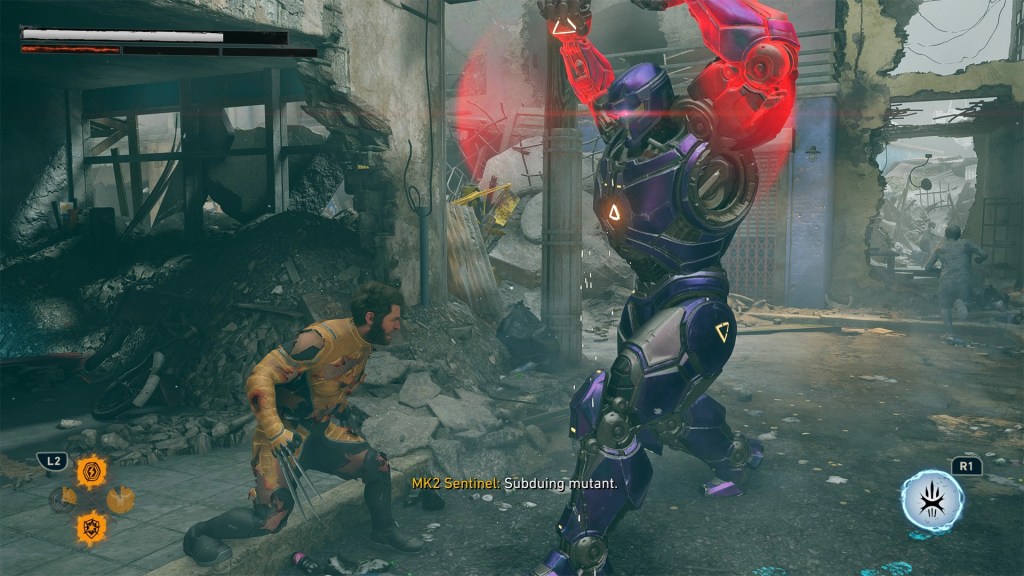
While Marvel’s Wolverine doesn’t have the fast-paced web-swinging of Insomniac’s Spider-Man titles, there are still elements that might be problematic for players who get motion sickness easily. Luckily, the game has a preset for this, one that reduces camera shakes and rotation effects, turns off the game’s motion blur, and reduces the film grain. The Full preset sets the camera shakes, rotations, and Film Grain all the way down to zero, while also shutting off the Combat Camera Rotation Assist and Depth of Field for a more focused view.
Motor Preset

Players with limited motor skills might want to look into Marvel’s Wolverine‘s Motor Preset options. These settings activate the on-screen Lock-On indicator that automatically zones in on the enemy closest to Logan during a fight, increase the amount of time for dodging and parrying incoming attacks, turn on Chase and Traversal Assist options that allow for more time during chase sequences, and remove the extra button inputs for parkour, respectively, and let you simply hold a button to simulate multiple button presses for attacks or dodging.
It also adds a green trail to the Hint Button, but contrary to what some have been saying online, this only appears for a brief flash whenever the joystick is clicked. It also isn’t to be confused with the scent trail, which only appears whenever Logan is using his heightened sense of smell and is part of the core gameplay.
Vision Accessibility

One of the more drastic lines of accessibility settings (at least when it comes to how the game looks) is geared toward helping the visually impaired enjoy Marvel’s Wolverine. They turn on useful features like Screen Reader that reads on-screen text aloud, and narration that describes cutscenes. Other audio cues chime in whenever a button prompt appears, and the guide trail from before now has a clicking sound to help guide you toward Logan’s objective.
The visuals are largely reduced to a grey background and different colored outlines for Logan, his enemies, and any NPCs you might meet along the way. Playing as a sighted person, it kind of looks like you’re playing as The Predator (from the sci-fi movies of the same name), and it’s actually pretty cool during stealth segments. Quick-Time Events also auto-complete, just like they do with the Motor Preset.
Violence Accessibility

Marvel’s Wolverine is a very violent game, thanks to Logan using his signature Adamantium claws to dismember and eviscerate anyone foolish enough to get in his way. Luckily for those who might get squeamish at all the gore (or have younger children who could catch an eyeful during a busy play session), Insomniac has options that let you turn off Dynamic Blood, Dismemberment, and Visceral Damage (the kind Logan himself sustains in the heat of battle). Instead, the combat looks… well, like any other, more T-Rated Marvel game that isn’t Marvel’s Wolverine or the 2009 X-Men Origins: Wolverine tie-in game.
This even carries over to the in-game cutscenes, with blood removed and particularly gruesome injuries blurred out. However, keep in mind that this only affects the violence; all of the swearing and darker plot elements are still there for anyone thinking this might be a quick way to make Marvel’s Wolverine more family-friendly.
Still here? Good.
That means the article did its job! If you’d like to see more of them (and get first crack at what’s next) our Patreon’s the place.
About the Author

Discover more from Bonus Action
Subscribe to get the latest posts sent to your email.